
Gaming Bottleneck Calculator for FPS and Upgrade Decisions
Use a gaming bottleneck calculator when average FPS, 1% lows, or monitor-target stability feel worse than the hardware should allow. Run the main tool with your real CPU, GPU, resolution, refresh goal, and gaming profile, then use this page to decide whether the problem is usually CPU pressure, GPU pressure, system noise, or settings that are simply too aggressive for the target.
This is not a title-by-title benchmark page. It is a game-performance diagnosis page built to help you stop blaming the wrong part first.
What a Gaming Result Should Tell You First
A gaming bottleneck calculator is useful only if it helps you read the pattern behind low FPS instead of staring at one percentage with no context. In gaming, the most useful answer is not just “which part is weaker?” It is “which part is weaker for this play style, this resolution, and this monitor target?”
That is why the result should be read through three signals together: average FPS, 1% lows, and whether the same limiter repeats after you change the settings that should matter most. A stable build can still miss a target refresh rate. A fast build can still feel bad if the 1% lows collapse in the scenes you actually notice.
Read the gaming result like a diagnosis, not like a promise. The useful question is whether the same pressure pattern keeps showing up after sane retesting.
Gaming Scenario Map by Play Style and Target
A fps bottleneck calculator becomes more useful when it reflects the kind of game session you actually care about. To see how your parts balance, you can check our CPU GPU bottleneck calculator pairing, as the same PC can feel balanced in one scenario and clearly off in another.
| Gaming Scenario | What Usually Breaks First | What To Watch | Best First Move |
|---|---|---|---|
| 1080p esports at 165 Hz to 240 Hz | CPU pressure often shows up first because frames have to be delivered much faster. | Weak 1% lows, lower-than-expected GPU usage, and small FPS gains after lowering graphics. | Cut CPU-heavy settings, check frame cap logic, and use a CPU bottleneck calculator to check the exact processor limits. |
| 1440p AAA gaming at 90 Hz to 144 Hz | GPU pressure usually grows, but the limiter can still flip by engine and scene density. | Whether visual cuts improve FPS quickly or whether the game still feels held back in busy areas. | Retest the same scene with lower GPU-heavy settings before buying hardware. |
| 4K single-player gaming | GPU render load and VRAM pressure usually dominate because each frame costs far more to render. | GPU usage, frame-time spikes after heavier effects, and whether upscaling cleans up the target. | Prioritize GPU-side tuning, then card upgrade if the same pattern stays obvious. |
| Gaming while streaming or recording | CPU pressure, encode overhead, or background-memory noise can distort the headline result fast. | Frame-time instability, CPU spikes, and whether the issue appears only during mixed sessions. | Test the same game with the extra load removed before assuming the gaming hardware alone is wrong. |
| Decent average FPS but bad feel | 1% low collapse, memory pressure, storage hitching, or poor frame pacing can matter more than average FPS. | Long-session stutter, inconsistent frame time, and spikes that do not match the headline average. | Check system noise and repeatable scenes before treating it like a pure CPU or GPU problem. |
What Changes FPS and 1% Lows Most
A gaming bottleneck calculator can move fast because gaming performance is not only about raw hardware names. Small changes in the session can change which side feels slow first.
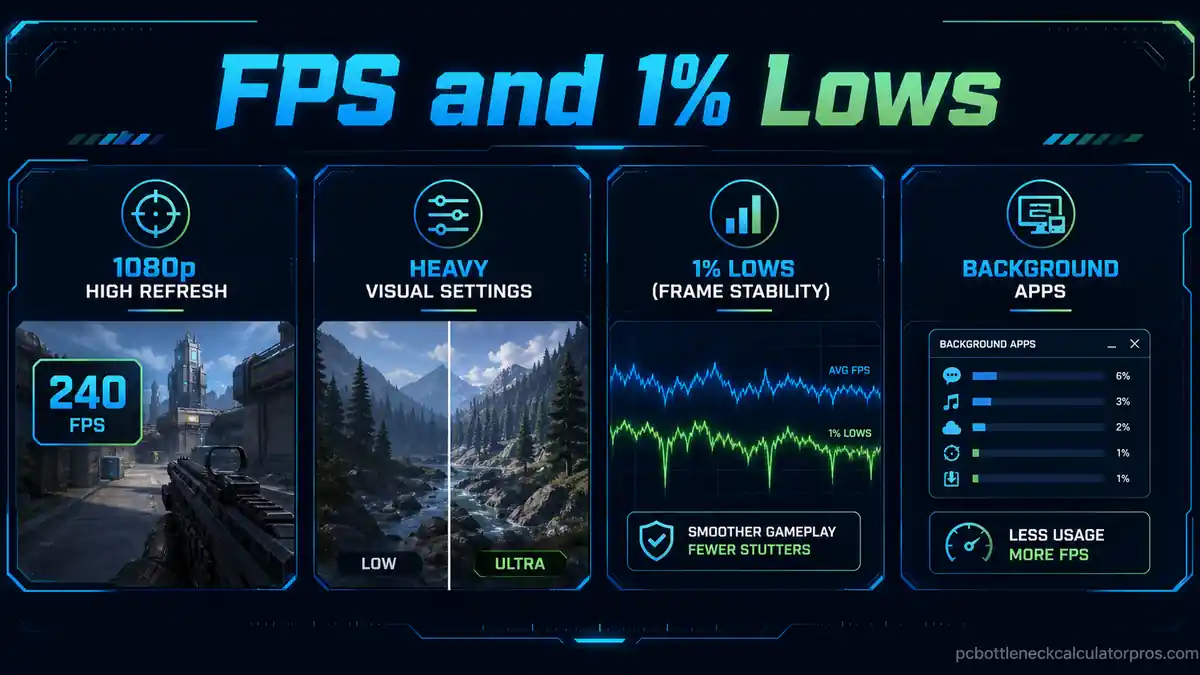
Resolution target
1080p, 1440p, and 4K can make the same build behave like three different systems once the pixel load changes.
Refresh goal
A 60 Hz target can look fine while 165 Hz or 240 Hz exposes CPU pressure and weak frame delivery much faster.
Game style
Esports, open-world AAA, strategy, simulation, and stream-plus-game sessions stress the same hardware in different ways. Heavier large-map shooters also need a title-specific read instead of forcing a broad gaming page to do that exact job.
Settings weight
Ray tracing, shadows, reflections, crowd density, view distance, and upscaling mode decide which side gets hit harder.
Background load
Browsers, recorders, overlays, and capture tools can make a clean gaming result look worse than it really is.
Thermals and stability
Boost behavior, throttling, and unstable memory settings can wreck 1% lows even when average FPS still looks passable.
When CPU Is Usually the Gaming Limiter
CPU pressure in gaming often shows up as “the FPS should be higher, but the GPU never gets the room to use its full render headroom.” That is a different pattern from a broad office or creator workload, which is why this section stays locked to gaming symptoms only.
- Lowering graphics does not improve FPS enough because the game still needs the processor to feed frames faster.
- GPU usage stays lower than expected in fast shooters, simulation-heavy games, crowded scenes, or high-refresh targets.
- 1% lows feel much worse than the average FPS suggests, especially when the frame cap is aggressive for the current CPU class.
- Background apps, recorders, or stream encode load make the gaming session collapse faster than a pure GPU load would.
When those signs repeat, the gaming problem is often closer to processor-side pressure, poor frame pacing, or a refresh target that is ahead of the current CPU platform.
When GPU Is Usually the Gaming Limiter
GPU pressure usually shows up more clearly when you ask the graphics card to push heavier visual work, higher resolutions, or more aggressive effects than the card can keep stable for the target frame rate.
- FPS improves fast when you cut ray tracing, shadows, reflections, or upscale more aggressively.
- Higher resolution makes the same hardware gap much easier to feel, especially at 1440p and 4K.
- GPU usage stays pinned near full load during the scenes that feel worst.
- Visual quality looks great on paper, but the frame-time cost is too high for the monitor target you actually use.
In those cases, the better gaming decision is often GPU-side tuning first; you can check the graphics limits using our GPU bottleneck calculator, rather than a blind processor upgrade that leaves the real graphics load untouched.
What to Fix Before Buying Parts
A game bottleneck calculator should help you avoid the wrong purchase before you spend money. Review the bottleneck calculator accuracy details, and clear the cheap mistakes first so you know the final pattern is real.
Cap the target realistically
Match the frame cap to what the build can actually hold in repeatable scenes instead of chasing a headline monitor number everywhere.
Tune CPU-heavy settings first
Draw distance, crowd density, traffic, simulation detail, and uncapped refresh targets often punish the processor side first.
Tune GPU-heavy settings first
Ray tracing, shadows, reflections, volumetrics, and texture-heavy presets usually move GPU pressure faster than CPU pressure.
Remove system noise
Close overlays, browser tabs, recorders, and background downloads. Check thermals and memory stability before you trust the hardware verdict.
If the same symptom survives those checks, the upgrade decision becomes much cleaner.
What Upgrade Path Makes Sense for Gaming
A gaming pc bottleneck calculator should help you choose between four outcomes: keep the build, upgrade CPU first, upgrade GPU first, or step back and run a broader pair check because the limiter keeps changing.
| Repeated Gaming Pattern | Better Move | Why It Usually Makes Sense |
|---|---|---|
| Average FPS is close enough and 1% lows stay reasonable | Keep the build and tune settings first | The real-world gain from replacing parts may be too small compared with a smarter game profile or frame cap. |
| 1080p high-refresh play keeps exposing CPU-side pressure | Upgrade CPU or platform first | The graphics card still has room, so a stronger GPU alone may not fix the missed refresh target. |
| 1440p or 4K gaming keeps pinning the GPU | Upgrade GPU first | The render load is the real ceiling, especially once heavier effects or VRAM pressure show up. |
| Stutter appears more than low average FPS | Check memory, storage, or system stability first | The issue may not be a pure CPU-versus-GPU problem even if the session still feels bad. |
| The limiter flips by game or by scene | Run a broader pair check before buying both parts | The safer decision is often staged testing instead of assuming one permanent gaming answer fits every title. |
Frequently Asked Questions
What does a gaming bottleneck calculator actually show?
It shows which part is most likely holding back game performance for the selected resolution, refresh target, and workload style. The useful output is direction, not a perfect benchmark promise.
Can a FPS bottleneck calculator tell me why 1% lows feel bad?
It can narrow the likely cause, especially when low FPS is not the only symptom. Weak 1% lows often point to CPU pressure, memory noise, storage hitching, or unstable frame pacing that average FPS alone can hide.
Is low FPS always a GPU problem?
No. A bottleneck calculator for gaming is useful because it can show where high-refresh CPU pressure, background load, or frame-delivery instability are more important than raw graphics load.
Should I upgrade CPU or GPU first for gaming?
Upgrade the side that repeats as the limiter in the same gaming scenario. CPU-first is more common in high-refresh play, while GPU-first is more common in heavier resolutions and visual presets.
Why do different games show different bottlenecks?
Different engines punish draw calls, shader work, VRAM, CPU simulation, and background overhead differently. That is why broad gaming diagnosis should be separated from title-specific pages.
Where to Go Next After the Gaming Check
Once the gaming bottleneck calculator points to a repeat pattern, move to the page that owns the next decision instead of forcing one broad answer to carry every follow-up job.
Check CPU-Limited Cases
Use the CPU page if low GPU usage, high-refresh targets, and weak 1% lows still point to processor-side pressure.
Check GPU-Limited Cases
Move to the GPU page if 1440p, 4K, heavier visual settings, or VRAM pressure keep looking like the real ceiling.
Check CPU/GPU Pairing
Open the pair page if the gaming limiter keeps changing and you need a broader both-parts upgrade decision.
Review Accuracy and Limits
Use the accuracy and limits section if you want the method, limits, and validation logic behind the estimate before spending money.
When the pattern clearly belongs to one title, move to the page that owns that exact read: Valorant bottleneck calculator for CPU-leaning esports targets, CS2 bottleneck calculator for round-stability and high-refresh match pressure, Fortnite bottleneck calculator for mixed scene-complexity shifts, or the Warzone bottleneck calculator for heavier GPU, VRAM, and streaming pressure.