
RAM Bottleneck Calculator for Memory Pressure, Speed, and Upgrade Decisions
Hard stutter, weak 1% lows, and slow alt-tab recovery often come from memory pressure rather than a bad CPU or GPU match. This ram bottleneck calculator helps you check whether RAM capacity, memory speed, or channel layout is the first problem to fix before you spend on the wrong upgrade.
Memory bottlenecks often masquerade as CPU or GPU problems until you test capacity pressure and paging directly.
RAM capacity, memory speed, channel mode, workload behavior, and background pressure in one place.
Anyone seeing stutter, weak 1% lows, long alt-tab delays, or sluggish multitasking under load.
Use the Live RAM Bottleneck Calculator
Use this live ram bottleneck calculator to compare your current CPU, GPU, memory capacity, RAM type, speed, and channel mode against the workload you actually run. The goal is not to promise exact FPS in every title. It is to show whether memory pressure is strong enough that upgrading CPU or GPU first would likely miss the real problem.
How to Read Your RAM Bottleneck Result
After you run this ram bottleneck calculator, read the output as a decision tool, not a promise of exact FPS in every title. The result is there to show how much memory pressure, speed limits, and channel layout are affecting smoothness so you can decide whether RAM deserves attention before CPU or GPU upgrades.
No-Cost Fixes
Upgrade Suggestions
Tuning Priorities
Why This Result
What a RAM Bottleneck Feels Like in Real Use
A real RAM bottleneck usually shows up as unstable smoothness rather than a clean drop in average FPS. When memory capacity, bandwidth, or channel layout falls short, the system starts feeling inconsistent during scene changes, multitasking, or long play sessions.
- Frame-time spikes appear when new areas load, large fights start, or background apps stay open.
- Alt-tab recovery slows down because the system has to reshuffle active data instead of keeping it in physical memory.
- 1% lows collapse harder than average FPS, especially in CPU-sensitive games or while streaming.
- Performance gets worse as the session goes on because background usage grows and paging starts to creep in.
Before you blame the CPU or GPU, look for repeatable signs of memory pressure: high RAM usage, disk activity from paging, and stutter that lines up with multitasking or scene changes.
90-Second Memory Triage Before You Upgrade
Use this quick check before you buy more RAM or chase a faster kit. It helps separate a real memory limit from one bad test run or a problem that belongs on the CPU or GPU page instead.
Check active memory usage
Monitor the game or app stack you actually use. If usage repeatedly sits near installed capacity, capacity is usually the first fix.
Watch for paging behavior
When the drive stays busy and responsiveness collapses during tab switches or scene loads, the system may be spilling into virtual memory.
Validate channel mode
Confirm matched sticks are in the correct slots and that the board is actually running dual-channel or quad-channel where supported.
Re-test one scene
Use the same map path, benchmark pass, or creator task before and after each change so you are comparing like for like.
Use realistic capacity targets
16GB still works for lighter gaming, but 32GB is the safer target for modern AAA titles, streaming, heavy browser use, and creator multitasking.
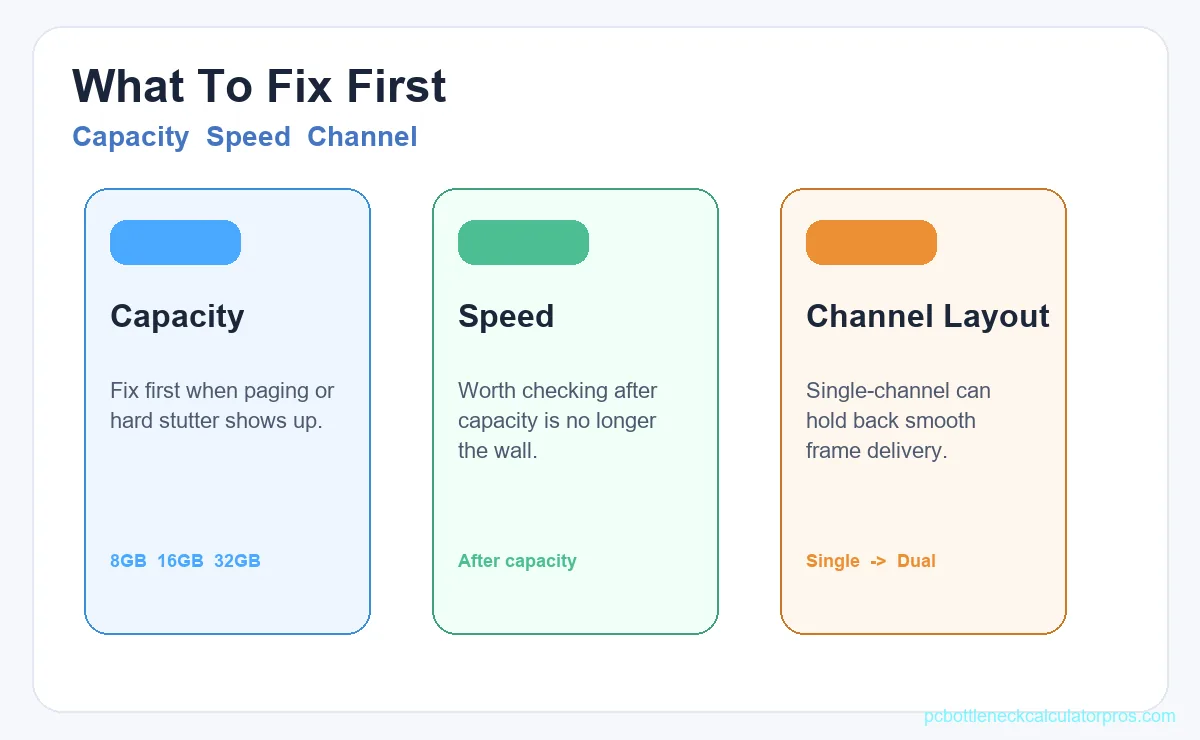
Capacity vs RAM Speed vs Channel Layout: What to Fix First
Most RAM upgrade mistakes happen in the wrong order. Users chase a faster kit when they are actually running out of capacity, or they buy more memory without fixing a single-channel layout first. (Single-channel memory and soldered RAM limits are especially common on notebooks, which you can check using our dedicated laptop bottleneck calculator). Use this sequence to decide what deserves attention before you spend money.
| Memory Factor | Common Symptom | First Action |
|---|---|---|
| Low total capacity | Hard stutter, long alt-tab recovery, and paging under gaming plus multitasking | Increase usable RAM capacity first |
| Single-channel or mismatched layout | Weak 1% lows, uneven smoothness, and reduced bandwidth in CPU-sensitive workloads | Move to a matched dual-channel setup and verify slot placement |
| Slow but otherwise stable memory | Average FPS looks acceptable, but high-refresh 1% lows still feel softer than expected | Enable a stable XMP or EXPO profile and re-test |
| Unstable tuning or bad timings | Random hitching, crashes, failed boots, or inconsistent sessions after tweaking | Return to a known-stable memory profile before testing anything else |
Capacity problems come first, channel layout comes next, and speed tuning matters most after the system is stable and no longer flirting with the RAM limit. If the machine is already paging, faster memory alone usually will not solve the core problem.
How to Use This RAM Bottleneck Calculator Step by Step
Treat this workflow as a controlled RAM test, not a one-click answer. The goal is to isolate one memory variable at a time so you can tell whether capacity, speed, or channel mode is actually changing how the system feels.
1. Define your workload profile
Separate esports, AAA gaming, streaming, and creator workloads before you read the result. A system that feels fine in lightweight competitive games can still run into memory pressure once heavier scenes, browser tabs, OBS, or asset-heavy tools enter the mix.
2. Capture your baseline
Track frame-time behavior, 1% lows, RAM usage, and general responsiveness before changing hardware or BIOS settings.
Keep the same scene, graphics preset, background apps, and refresh target for every run. Without a stable baseline, you cannot tell whether RAM improved the experience or whether the workload simply changed.
3. Apply one RAM change only
Change one variable at a time: capacity, channel layout, profile speed, or timings. If you add more RAM and enable a new memory profile at the same time, you lose the reason the system improved or got worse.
4. Compare same scene again
Repeat the exact same test and look for cleaner frame delivery, faster alt-tab recovery, less paging, and fewer hard stutters. A tiny average FPS gain means less than a visible improvement in smoothness.
5. Decide upgrade path
Let measured behavior decide the next spend. If fixing capacity or channel mode removes the stutter, RAM was the right first move. If memory health looks solid and CPU or GPU pressure still dominates, RAM is probably not the next upgrade priority.
RAM and CPU Interaction: Why the Pair Matters
RAM pressure and CPU pressure often overlap in the same session. In CPU-sensitive games, the processor can look weak when it is actually waiting on memory capacity, bandwidth, or a poor channel layout. That is why weak 1% lows and bad frame pacing should be read alongside RAM usage, not in isolation.
Start with the RAM signals first. If capacity pressure is high, the pagefile is active, or single-channel memory is holding bandwidth back, fix those issues before assuming the processor is the first upgrade. If memory health looks stable and frame delivery still falls apart in simulation-heavy scenes, strategy games, or high-refresh play, move to the CPU bottleneck calculator for a CPU-first check.
Practical rule: RAM limits usually hurt consistency first, while CPU limits usually hold back throughput after memory behavior is already under control. Clean upgrade decisions come from separating those two signals.
When RAM Is Not the Limiting Component
Not every stutter or weak low is caused by memory. If RAM usage stays reasonable, paging is low, and the memory setup is stable, the next problem may belong on a different page in the cluster.
- If GPU usage is pinned in visually heavy scenes at 1440p or 4K, the graphics card is more likely the real limiter.
- If lower settings do not help and thread-heavy scenes still break smoothness with healthy RAM usage, the CPU may be the better page to check next.
- If hitching appears mainly during asset loading, patch installation, or first-run shader compilation, storage behavior or game-side compilation may be the bigger issue.
- If thermals, power limits, or background processes are unstable, they can distort the result even when the RAM setup itself is fine.
For graphics-first troubleshooting, inspect GPU usage. For processor-first behavior, inspect CPU thread pressure. If you need to compare the pair more broadly before buying parts, check combined platform balance.
Upgrade Paths by Use Case
The right RAM upgrade depends on what kind of pressure your workload creates. Some systems need more total capacity first, some need a proper dual-channel layout, and some only benefit from extra speed after stability is already locked in.
| Profile | Typical Memory Priority | Best First Upgrade Move |
|---|---|---|
| 1080p high-refresh esports | Frame-time consistency, low-latency behavior, and clean 1% lows | Confirm dual-channel first, then use a stable tuned memory profile |
| 1440p or mixed AAA gaming | Balanced capacity headroom and stable memory speed | Fix capacity headroom before chasing higher frequency |
| Streaming + gaming + heavy background apps | Capacity under concurrent app load and long-session stability | Increase total RAM before aggressive timing or frequency changes |
| Creator or workstation multitasking | Capacity, stability, and predictable performance under mixed loads | Choose a larger stable kit and validate it with the real apps you use |
If RAM looks healthy after these checks and the system still feels constrained, move to the CPU or GPU pages instead of assuming more memory will fix everything. If you are balancing the whole platform at once, use the CPU GPU bottleneck calculator after the RAM check to finalize part selection.
Accuracy, Limits, and Validation
This ram bottleneck calculator is meant for direction and prioritization, not for guaranteed benchmark numbers. It can help you spot when memory pressure, channel layout, or RAM speed is likely hurting smoothness, but it cannot see every live variable inside your exact setup.
- It can estimate likely memory pressure, bandwidth risk, 1% low impact, and whether RAM looks more urgent than CPU or GPU for the scenario you entered.
- It cannot know your exact game patch, BIOS behavior, driver state, thermal stability, background spikes, or whether a scene is compiling shaders in the background.
- Results change between games and apps because engines lean on capacity, caching, asset streaming, CPU scheduling, and background load in different ways.
Validate the estimate with repeatable testing: use the same scene, the same preset, the same background app stack, and monitoring for RAM usage, pagefile activity, CPU and GPU utilization, temperatures, and frame-time consistency.
If you want the deeper assumptions, confidence notes, and edge cases behind the estimate, read the accuracy and limits guide and the score-method guide.
Frequently Asked Questions
Is this RAM bottleneck calculator accurate for upgrade planning?
It is reliable for direction and prioritization. Exact results can still vary by game engine, drivers, thermal behavior, and background processes.
Can RAM speed alone fix stutter?
Not always. If the system is capacity-bound or paging heavily, more speed alone will not solve the core issue.
Do I need dual-channel memory for gaming?
In most current gaming and multitasking setups, yes. Dual-channel generally improves effective bandwidth and frame-time consistency compared with single-channel.
Is 16GB enough for current games?
For lighter gaming, 16GB can still be workable. For newer AAA titles, heavy multitasking, streaming, large browser sessions, or creator workloads, 32GB is the safer target if you want more headroom and fewer capacity-related stutters.
When should I upgrade RAM before CPU or GPU?
Upgrade RAM first when you see clear memory pressure, paging, poor channel layout, or stutter that improves after capacity or memory-config fixes. If RAM usage stays healthy and the same workload still shows CPU thread pressure or GPU saturation, the processor or graphics card may deserve priority instead.
Where to Go Next After the RAM Check
Once you know whether memory pressure is real, the next pages most readers still need are the broader main calculator, the plain-language bottleneck explainer, and the GPU page if visual load still looks like the real ceiling.
Return to Main Calculator
Go back to the PC bottleneck calculator if you want a faster top-level check before changing multiple parts.
Review the Bottleneck Basics
Read what a PC bottleneck means if you want the broader PC meaning before separating memory pressure from CPU or GPU limits.
Check GPU-Limited Cases
Use the GPU bottleneck calculator when visual load, higher resolution, or graphics settings look like the real ceiling.