
What Is a PC Bottleneck? Meaning, Signs, and First Checks
A PC bottleneck is the part or system limit that holds back the performance result you want. If the CPU cannot feed frames fast enough, the GPU waits. If the GPU cannot keep up with the resolution or settings, the processor waits. If RAM or storage is too weak for the workload, the whole machine can feel slower even when the main parts still look fine on paper.
In plain language, asking what is a PC bottleneck really means asking which limit is stopping the rest of the computer from showing its full value for this task. The answer can change with the game, app, resolution, refresh target, background load, and overall health of the system around those parts.
What a PC Bottleneck Means in Plain English
A bottleneck is not a permanent insult attached to one component. It is a relationship between the workload you are trying to run and the weakest current limit inside the PC. That is why the same desktop can look fine in office work, feel tight in high-refresh gaming, and struggle badly in a heavier creator task.
The easiest way to picture it is a traffic lane. The whole road can move only as fast as the narrowest point allows. In a computer, that narrow point might be the processor, the graphics card, the memory setup, storage behavior, or even heat and background pressure that stop the advertised hardware from performing normally.
A useful beginner rule: there is almost always some current limit. The practical question is whether that limit matters enough in your real workload to justify changing settings, fixing the system, or buying parts.
Why the Same PC Can Feel Fine in One Task and Slow in Another
A PC bottleneck changes with context. The part that feels weak in one situation is not always the same part that feels weak in the next one, which is why broad labels like “this build is bottlenecked” are usually too simple to be useful.
1080p high refresh
Fast frame targets can expose CPU-side pressure sooner because the processor has to prepare more frames each second for the same screen target.
Higher resolution
1440p and 4K often shift more pressure onto the GPU because each frame takes much more render work.
Mixed multitasking
Streaming, lots of browser tabs, meetings, and creator apps can make RAM or storage pressure matter more than expected.
Long sessions
Thermals, power mode, and background apps can change performance even when the main hardware looks the same on paper.
This is the main reason one single percentage never tells the whole story. A build is judged against the exact outcome you want, not against a generic idea of balance. A game with changing scene complexity can feel very different from a fixed benchmark, which is why workload context matters so much in bottleneck diagnosis.
Common Signs of a PC Bottleneck
The first useful step is to match the symptom to the kind of limit it usually suggests. This does not replace a deeper diagnosis, but it does stop many wrong upgrade guesses.
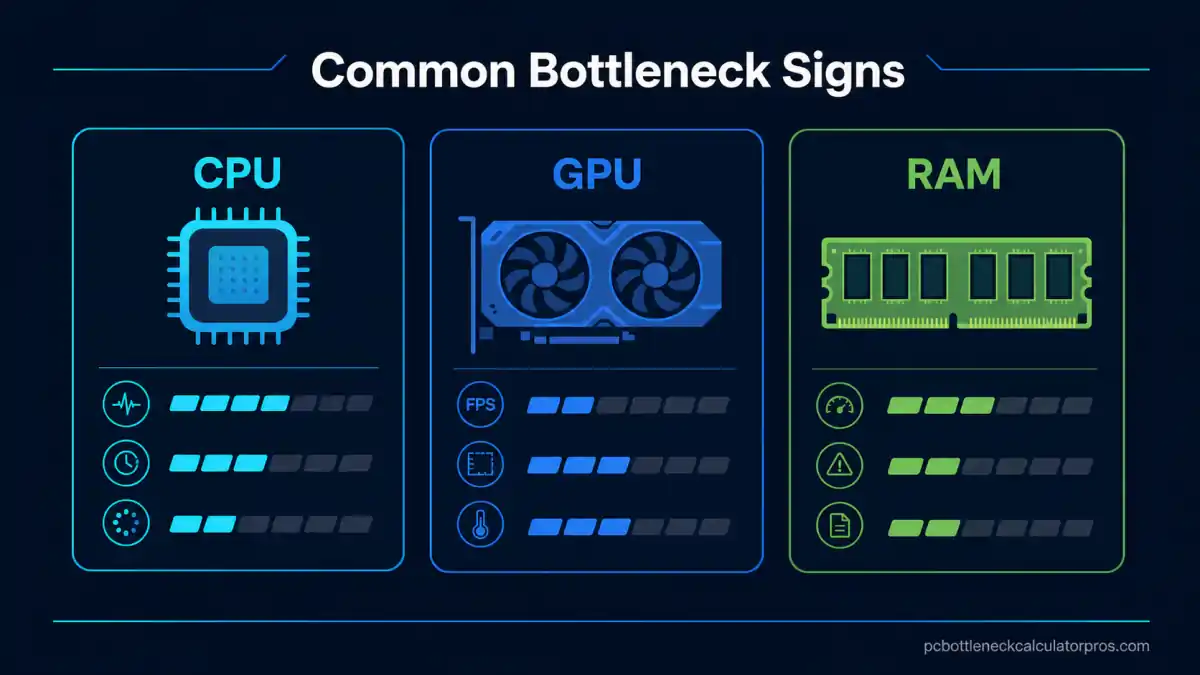
| What you notice | What it often suggests | Better first check |
|---|---|---|
| Lowering graphics barely improves FPS at 1080p | CPU pressure, frame-target pressure, or a workload that is not mainly GPU-bound | Check whether the CPU is under heavier load and whether the refresh goal is too aggressive for the platform |
| Higher resolution or heavier visual settings make performance collapse fast | GPU pressure or graphics-memory pressure | Retest the same scene after cutting GPU-heavy settings or render resolution |
| Stutter gets worse when many apps or tabs stay open | RAM pressure, paging, or storage slowdown | Check memory capacity, background use, and how full or slow the system drive is |
| The PC feels fine at first, then worse later in the session | Thermals, power limits, or background load building over time | Watch temperatures, clocks, and system noise over a longer test instead of one short run |
| One app or game feels bad while another feels normal | A workload-specific bottleneck, not necessarily a general build problem | Test the exact task you care about before deciding which part is the real wall |
Which Parts Usually Create a Bottleneck
When users ask what is a PC bottleneck, they usually expect the answer to be only CPU or GPU. Those are common sources, but they are not the whole picture.
CPU bottleneck
This shows up when the processor cannot prepare work fast enough for the frame rate or workload you want. It is more common in high-refresh gaming, simulation-heavy scenes, heavy multitasking, and mixed sessions where many background tasks compete for processor time. Use the CPU bottleneck calculator when processor-side pressure keeps showing up after sane retesting.
GPU bottleneck
This shows up when render load, resolution, visual settings, or graphics-memory demand are too heavy for the card. It becomes easier to notice as resolution rises or the visual preset gets more demanding.
RAM bottleneck or memory pressure
Low memory capacity, single-channel layout, or heavy paging can make a system feel much worse than the CPU and GPU names suggest. Bad stutter and weak multitasking often point here before they point to a pure CPU or GPU mismatch.
Storage and system-condition bottlenecks
Slow storage, a nearly full SSD, heat, power settings, or too much background activity can hold the system back even when the headline hardware still looks respectable. Those limits are easy to misread if you only compare part names.
What Is Not Always a Bottleneck
Not every slowdown means the build is permanently out of balance. Many problems look like a bottleneck at first, but the real issue is a condition around the hardware rather than the hardware match itself.
- A bad patch, driver issue, or unstable game setting can make one title perform worse than the rest of the system normally does.
- Heat, dust, poor airflow, or the wrong power plan can create a fake part limitation that was not there in a healthier state.
- Too many background apps, an overloaded browser, or low free storage can distort the session before the main parts are truly outmatched.
- An unrealistic monitor target can make a good build look weak simply because the goal is beyond what that class of hardware should hold consistently.
This is why beginner diagnosis should start with the workload pattern and the system condition, not with panic buying after one disappointing session.
When a Bottleneck Calculator Helps Most
A bottleneck calculator is most useful after the meaning is clear and you want a faster way to narrow the likely limit. It works best as a diagnostic shortcut, not as a guarantee for one exact benchmark outcome.
Before buying an upgrade
It helps you check whether money should go toward CPU, GPU, memory, or basic system cleanup first.
When a monitor target is being missed
It helps separate a weak frame target decision from a deeper hardware problem.
When the limiter seems to move
It helps you compare repeated tests more calmly instead of assuming one short session already told the full story.
When you need a better first direction
It gives you a smarter next check than simply assuming the newest part in the build is automatically fine.
If the result points in one direction and your repeatable testing keeps showing the same pattern, the diagnosis becomes much more reliable.
What to Do After You Spot a PC Bottleneck
Once you understand the PC bottleneck idea, the next move is not always to replace hardware immediately. A better process usually saves money and points to the real ceiling faster.
1. Test the real workload
Check the game, app, or mixed session you actually care about instead of a random task that does not match your use case.
2. Change one variable only
Lower the resolution, cut one heavy setting, close background apps, or change memory load one step at a time so the pattern stays readable.
3. Clear fake limits first
Check thermals, storage space, power mode, and system noise before you decide the build needs new parts.
4. Buy only after the pattern repeats
If the same limiter still appears after sane retesting, the upgrade decision becomes much cleaner and safer.
Frequently Asked Questions
What is a PC bottleneck in simple terms?
It means one current limit inside the system is holding back the performance result you want from the rest of the PC. That limit might be CPU, GPU, RAM, storage behavior, thermals, or another condition that changes how the hardware performs in practice.
Is a bottleneck always the CPU or GPU?
No. CPU and GPU are common, but memory pressure, slow storage, heat, power settings, and background load can all create a result that feels bottlenecked even before a pure part mismatch is confirmed.
Can RAM or storage create a bottleneck?
Yes. Low memory capacity, paging, a slow drive, or a nearly full system disk can create stutter and slow response that make the whole PC feel weaker than the processor and graphics card names suggest.
Does every slow PC have a bottleneck?
Not in the way most people mean it. Some slowdowns come from software problems, heat, power mode, or unrealistic settings targets rather than a permanent hardware balance issue.
Should I upgrade as soon as I find one?
Not automatically. First confirm the pattern in a repeatable workload and clear easy problems like thermals, power settings, background load, or low storage. Upgrade after the same limiter keeps showing up.
Where to Go Next After You Understand the Bottleneck
Once the term makes sense, move to the page that owns the next job instead of forcing this beginner explainer to answer everything at once.
Check CPU/GPU Pairing
Use the CPU GPU bottleneck calculator when you want a broader both-parts diagnosis before a build change or upgrade.
Check RAM Pressure
Move to the RAM bottleneck calculator if stutter, multitasking slowdown, or paging look more serious than raw CPU or GPU mismatch.
Check GPU Limits
Open the GPU bottleneck calculator if low FPS, weak 1% lows, or higher-resolution play makes the graphics card look like the real limit.
Review Accuracy and Limits
Use the bottleneck calculator accuracy page if you want the method limits and validation logic before trusting a result too aggressively.