
Valorant Bottleneck Calculator for FPS and Upgrade Decisions
Hit your real Valorant FPS target before you assume the wrong part is weak. Use the PC Bottleneck Calculator to check your build, then use this Valorant bottleneck calculator page to read whether the problem is more likely CPU pressure, GPU pressure, or system-side issues like RAM limits and background load.
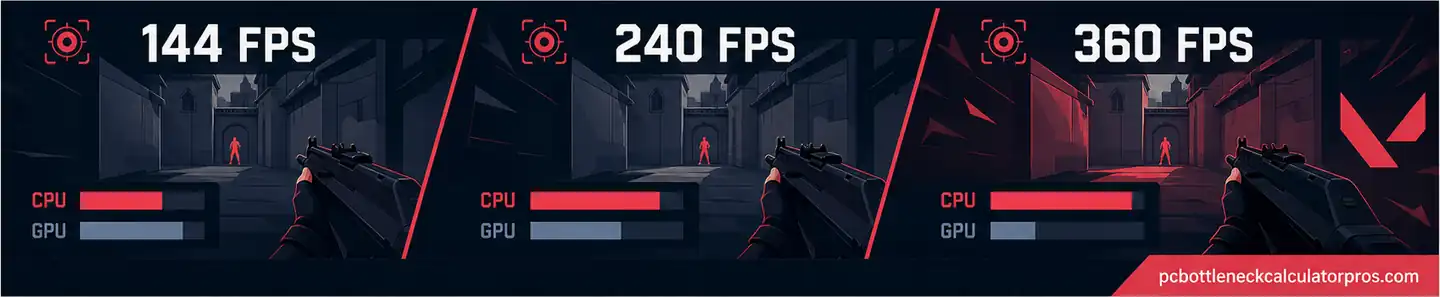
Valorant can look easy to run at first, but the answer changes fast when the target moves from 144 FPS to 240 FPS or 360 FPS. A PC that feels fine in many games can still fall short here if frame delivery is not stable enough for high-refresh play.
This page is here to help you read that result properly. The goal is simple: find the real limit first, test the right change next, and only upgrade when the same pattern keeps showing up.
What a Valorant Bottleneck Result Should Tell You First
Your Valorant result is useful only if it tells you what is blocking the FPS target you actually want. The first question is not whether one part is weaker on paper. The first question is whether your build can hold stable frame delivery for the way you play.
Start with the target itself. If you play on a 144 Hz screen, one result can look acceptable. If you want 240 FPS or 360 FPS, the same PC can suddenly look much less balanced. That is why the result has to be read with the target in mind, not as a generic score.
CPU pressure
Average FPS may look close to the target, but 1% lows stay weak, frame delivery feels uneven, or lower settings barely help.
GPU pressure
FPS improves more clearly when you cut resolution or heavier visual settings, especially if the graphics card is already near its limit.
System-side pressure
RAM limits, single-channel memory, heavy background apps, or thermal throttling can distort the whole read of the build.
Read the result against the FPS goal you care about. A build that is fine for 144 FPS can still miss 240 FPS for reasons that are easy to blame on the wrong part.
Why Valorant Often Exposes CPU Limits Faster Than Many Games
Valorant deserves its own page because the performance pattern is not the same as a broad gaming average. In the local tool logic for this site, Valorant is treated as a CPU-leaning esports profile. That means the processor often matters earlier than many players expect, especially when the goal is smooth high-refresh play rather than just playable FPS.
The reason is simple. High-refresh play needs frames delivered very quickly and very consistently. Once you push toward 240 FPS or 360 FPS, weak CPU-side frame pacing becomes easier to notice. A graphics card can still be good enough on paper, but the game may not feel as clean as it should if the processor cannot keep up with that faster delivery pattern.
This is also why some builds create confusion. A PC may run heavier-looking games well enough, yet still struggle to feel right in Valorant at a high target. That does not always mean the graphics card is too weak. In many cases, the bottleneck shows up because the processor, memory behavior, or background CPU load becomes the first wall in competitive settings.
Which FPS Target Changes the Answer Most in Valorant
The same PC can look balanced at one target and clearly limited at another. That is why the result should always be read against the FPS goal you actually want, not just against the idea of good performance.
| Target | What Usually Changes First | What To Watch | Best First Read |
|---|---|---|---|
| 144 FPS | Both CPU and GPU limits can still matter depending on settings and system cleanliness. | Whether the miss is obvious across the whole session or only appears in heavier moments. | Check if the build is simply underpowered or being distorted by settings and background load. |
| 240 FPS | CPU pressure shows up more often, especially at 1080p competitive settings. | Weak 1% lows, smaller gains after visual cuts, and uneven frame delivery. | Ask whether the processor side is struggling to keep up even when the GPU has room left. |
| 360 FPS | CPU-side frame pacing, RAM behavior, and background noise become much easier to notice. | Whether the build stays clean only in short tests but falls apart in longer or busier sessions. | Treat this as a separate goal, not just a bigger version of 144 FPS. |
144 FPS target
Many mid-range systems can still feel balanced here if the settings are reasonable and the rest of the system is clean.
240 FPS target
This is where many builds stop feeling clean because CPU pressure becomes easier to notice than the raw GPU load alone.
360 FPS target
Small weaknesses in frame delivery, RAM behavior, or background CPU noise become much easier to feel.
When Valorant Is More Likely CPU-Limited
Valorant is more likely CPU-limited when the system cannot deliver frames fast enough for the target even after you lower the settings that should help the GPU. This is the pattern many players miss. They lower visuals, expect a big gain, and then assume something is wrong with the game when the result barely moves.
- The graphics card is not fully loaded but FPS still refuses to climb where it should.
- Average FPS looks decent, but 1% lows stay messy and the game feels less stable than the hardware should suggest.
- Competitive settings at 1080p still do not hold the target cleanly.
- Streaming, recording, browser tabs, overlays, or background apps keep adding CPU pressure during matches.
- Lower GPU-heavy settings barely improve the result.
This does not mean every missed target is a CPU problem. It means the CPU side should move higher on the checklist when the pattern stays the same after sane retesting.
If the pattern still points the same way after checking lower resolution, RAM layout, and background load, the next step is to review it with the CPU bottleneck calculator.
When Valorant Is More Likely GPU-Limited
Valorant is often discussed as a CPU-heavy game, but that does not mean the graphics card stops mattering. Your result can still point to the GPU first when the render load rises enough that the card becomes the clear limit.
- You play at 1440p or higher instead of a lighter 1080p competitive setup.
- You prefer higher visual clarity, sharper image quality, or heavier effects.
- Your CPU is already strong for the target, but the graphics card is much weaker.
- GPU usage stays high while FPS still misses the target.
- FPS improves quickly when you reduce GPU-heavy settings.
This can also happen when the target itself is not extremely high. A build may be more CPU-sensitive at 240 FPS in low settings, but the same build can become more GPU-sensitive if you move to a higher resolution and care more about clarity than maximum refresh.
If the card reacts strongly to setting cuts, the GPU side deserves attention first. In that case, compare the pattern with the GPU bottleneck calculator.
How Resolution, Settings, and Background Load Change the Result in Valorant
The result can look very different after only a few changes. That is why it should never be read without context. Resolution, visual settings, and system noise can all change which part looks like the main limit.
1080p competitive settings
This is where Valorant often shows its CPU-sensitive side most clearly because the GPU may no longer be doing the hardest part of the work.
1440p or clarity-first play
The GPU gets pulled into the result more heavily, so the same build can shift away from a mostly CPU-led pattern.
Streaming or heavy background apps
Extra CPU load, memory pressure, or frame-time instability can distort the result enough to send you toward the wrong fix.
This is one of the easiest ways to misread a bottleneck. A user may think the CPU or GPU is too weak, when the real problem is that the system is carrying extra load during the match.
If you want the broader cross-game view after testing these variables, compare the pattern with the gaming bottleneck calculator. If the same high-refresh symptoms show up in another round-based esports shooter, compare them with the CS2 bottleneck calculator.
What RAM, Storage, and Thermals Can Distort in Valorant
The result can look more CPU-limited than it really is when the rest of the system is not clean. That is why this page should not be read as CPU versus GPU only. RAM layout, storage behavior, and heat can all distort the picture enough to send you toward the wrong fix.
RAM is usually the first place to check after the obvious CPU and GPU signals. If the system is running in single channel, has too little memory for the full match setup, or is carrying heavy background apps, frame consistency can drop even when the core hardware pairing looks acceptable.
Storage matters too, but in a narrower way here. For Valorant, storage is usually less important to steady FPS than it is in heavier open-world titles. It is more likely to affect loading behavior, occasional hitching, or general system responsiveness around the match rather than acting like the main cause of a missed high-refresh target.
Thermals can distort the result just as easily. If the CPU or GPU is running too hot, clocks can drop and the system may look weaker than it really is.
If memory-side issues look likely, compare the pattern with the RAM bottleneck calculator.
What to Fix Before Buying New Parts for Valorant
Do the low-cost fixes first before you spend on hardware. This page is most useful when it helps you remove the easy distortions before you decide the build truly needs an upgrade.
Lower the right settings first
Start with the settings that should affect the GPU most. If they barely help, the CPU side, RAM behavior, or system noise may be more important.
Cut background CPU noise
Close browser tabs, launchers, overlays, capture tools, and update services before you trust the first bad result.
Check RAM capacity and channel layout
Single-channel RAM or weak capacity can create a fake CPU problem that looks worse than the real hardware balance.
Check thermals and power behavior
Watch whether clocks and performance stay stable through longer sessions instead of only the first clean minutes.
Retest after each change. If the same limit keeps showing up after the easy fixes, the result becomes much more useful for a real upgrade decision.
Which Upgrade Path Makes the Most Sense for Valorant
The best move depends on what is actually blocking the FPS target after clean retesting.
CPU-first cases
Upgrade the processor side first when 240 FPS or 360 FPS stays blocked even after lower GPU-heavy settings and cleaner background conditions.
GPU-first cases
Move toward the graphics card first when resolution or visual setting cuts create a clear and repeatable FPS gain.
RAM-first cases
Check memory before larger hardware changes when the result looks unstable, inconsistent, or too sensitive to background activity.
When not to upgrade yet
Wait if the pattern still changes too much after simple cleanup. A good upgrade decision should feel obvious after the noise is removed.
How to Test a Valorant Bottleneck Properly
Test the same kind of Valorant load more than once before you trust the result. The reading becomes much more useful when it is tied to one repeatable scenario instead of one random match moment.
- Run the first clean test with the settings you actually use.
- Use the same practice range routine, custom match, or short deathmatch-style scenario each time.
- Lower the settings that should mainly affect the GPU and repeat the same scenario.
- Close background apps and repeat again if needed.
- Compare whether the same limiter keeps showing up for the same FPS target.
Do not look at average FPS alone. Watch average FPS, 1% lows, CPU behavior, GPU behavior, frame-time consistency, and whether the result changes after one controlled setting change.
The pattern is clear enough to trust when the same limit shows up across repeat tests and background cleanup no longer changes the result much.
Frequently Asked Questions
Is Valorant more CPU-bound or GPU-bound?
Valorant often leans more toward the CPU side, especially at 1080p and higher refresh targets like 240 FPS or 360 FPS. That does not mean the GPU stops mattering. The graphics card can still become the main limit at higher resolution, heavier settings, or with a weaker card.
Why does lowering graphics not always fix Valorant FPS?
Lowering graphics helps most when the graphics card is the main limiter. It does much less when the system is being held back by CPU-side frame delivery, weak 1% lows, RAM behavior, background apps, or thermal limits.
Can RAM affect Valorant bottleneck results?
Yes. RAM can change how the result looks, especially when the system is running in single channel, carrying too much background activity, or working with a weaker memory setup for the full match load.
Is 240 FPS much harder than 144 FPS in Valorant?
Yes. A build that looks balanced for 144 FPS can still struggle at 240 FPS because the frame delivery target becomes much tighter. Smaller problems become easier to notice.
Should I upgrade CPU or GPU first for Valorant?
Upgrade order should follow the pattern that stays consistent after retesting. A CPU-first upgrade makes more sense when lower GPU-heavy settings do not help much and the system still struggles to hold high-refresh targets cleanly. A GPU-first upgrade makes more sense when FPS rises clearly after resolution or graphics cuts.
Conclusion
A Valorant bottleneck calculator is most useful when it helps you answer one clear question: what is stopping your build from holding the FPS target you actually want. In Valorant, that answer often changes with the target itself. A PC that feels fine for 144 FPS can still run into CPU-side pressure, weak 1% lows, or system noise once the goal moves to 240 FPS or 360 FPS.
That is why the right fix should come after a clean retest, not before it. If lower GPU-heavy settings barely help, the CPU side may be the real limit. If FPS rises clearly after resolution or visual cuts, the GPU deserves more attention. If the result feels unstable, RAM layout, background apps, or thermals may be bending the picture.
The practical move is simple: test one repeatable Valorant scenario, change one condition at a time, and follow the limiter that keeps showing up. Once the pattern stays consistent, you can use the broader site tools with much more confidence and avoid upgrading the wrong part first.