
CS2 Bottleneck Calculator for FPS and Match Stability
Check whether your build can hold real CS2 rounds cleanly before you blame the wrong part. Use the bottleneck calculator to check your build, then use this CS2 bottleneck calculator page to read whether the problem points more toward CPU pressure, GPU pressure, or system-side issues like RAM limits, background load, and weak frame stability.
The hard part with CS2 is that one light test can make a PC look fine when the real match still feels unstable. A build may show strong headline FPS in easier moments but still lose smooth frame delivery once rounds get busier, utility fills the screen, or the target moves from 144 FPS toward 240 FPS or 360 FPS.
This page is here to help you read that difference properly. The goal is simple: understand what is really blocking your target in CS2 before you change settings or spend money on the wrong upgrade.
What a CS2 Bottleneck Result Should Tell You First
A CS2 result is useful only if it tells you why the game feels weak in the moments that actually matter. The first question is not which part looks weaker on paper. The first question is whether your build can keep CS2 stable for the FPS target you really want in live rounds.
That is why one headline FPS number is not enough. A build can look good in warm-up, a quiet angle, or a light deathmatch stretch and still feel worse once smokes bloom, utility lands, and multiple players hit the screen in a real round. If the target is only 144 FPS, one system may still feel acceptable. If the goal is 240 FPS or 360 FPS, the same build can suddenly look much less balanced because frame delivery has to stay tighter through peeks, swings, and retakes.
CPU pressure
Average FPS may look decent, but 1% lows stay weak, frame delivery feels less stable in real rounds, or lower settings barely help.
GPU pressure
FPS improves more clearly after resolution cuts or heavier visual setting cuts, especially when the graphics card is already near its limit.
System-side pressure
RAM layout, background apps, thermal limits, and general system noise can make the result feel worse than the CPU and GPU pairing alone suggests.
Read a CS2 result against the FPS target and the real match feel you care about. A build that looks fine in a lighter check can still break down once the round gets busy.
Why CS2 Can Look Fine in Light Tests but Break in Real Rounds
CS2 needs its own page because the problem is not always visible in the easiest test moment. In the current tool logic for this site, CS2 is grouped with Valorant inside one shared CPU-leaning esports profile. That helps with the broad read, but this page has a different job: interpret the result for CS2 match conditions, not for a generic esports average.
A quick warm-up view, a lighter angle, or a cleaner moment can make the build look stronger than it feels in a real round. Once the match gets busier, the system may have to keep up with tighter frame delivery, more on-screen pressure, more player models, smoke-heavy executes, and short aim windows that expose weak 1% lows or CPU-side pacing sooner.
That does not mean every weak CS2 result is a CPU problem. Higher resolution, heavier settings, a weaker graphics card, RAM-side issues, or background apps can still bend the answer. But if the game feels worse in real rounds than it does in lighter tests, the CPU side and frame-stability side should move higher on the checklist before you blame raw GPU power.
Which FPS Target Changes the Answer Most in CS2
One PC can look completely fine at 144 FPS and still fail the moment you expect 240 FPS or 360 FPS in real rounds. Read the result against the exact CS2 target you want, because high-refresh Counter-Strike exposes weak frame pacing far faster than a softer target does.
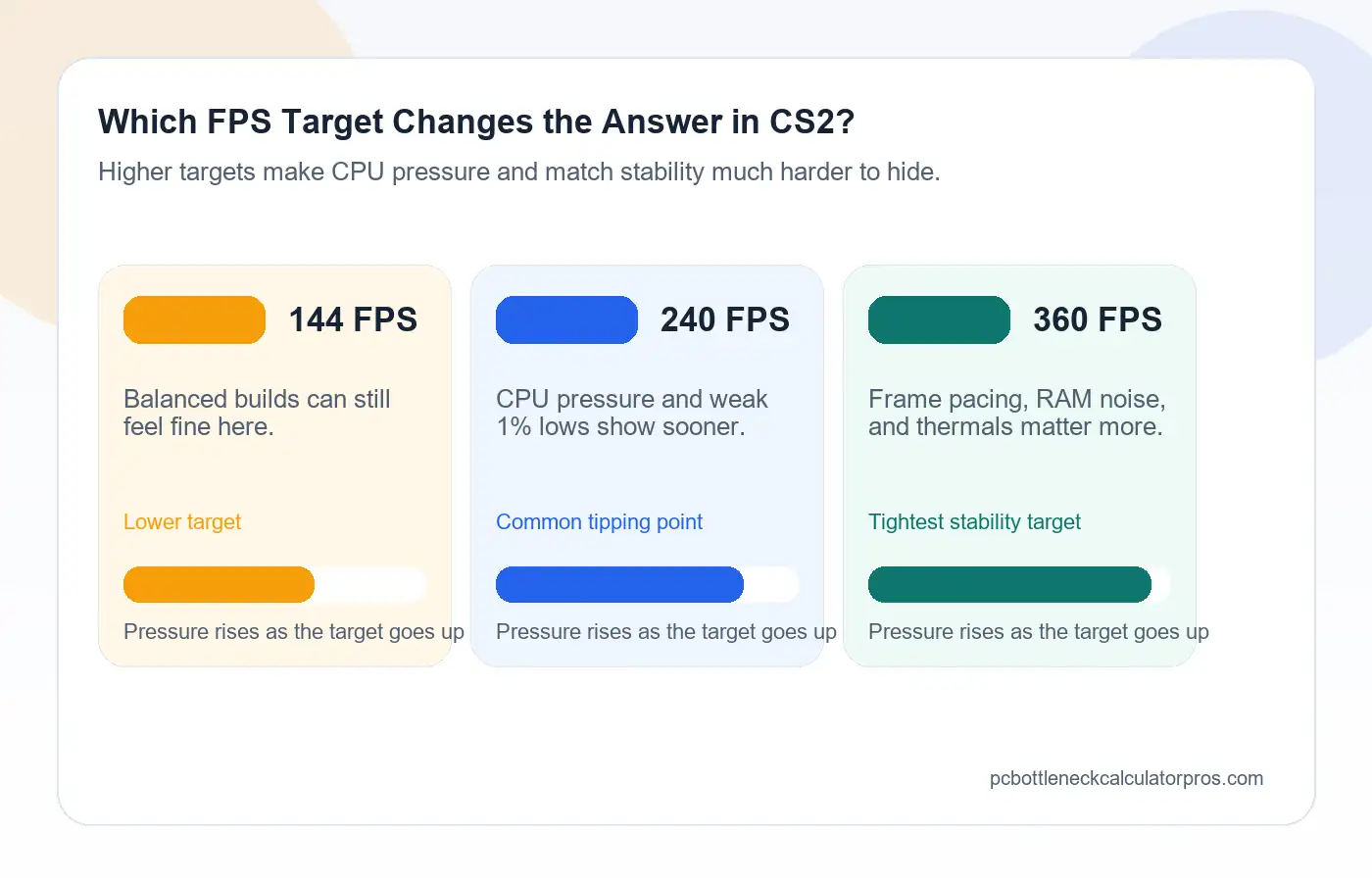
| Target | What Usually Changes First | What To Watch | Best First Read |
|---|---|---|---|
| 144 FPS | Both CPU and GPU limits can still matter depending on settings and overall system cleanliness. | Whether the miss is obvious across the whole session or only appears once rounds become heavier. | Separate a clearly weak build from a build that is being distorted by settings, RAM, or background load. |
| 240 FPS | CPU pressure becomes much easier to notice, especially at 1080p competitive settings. | Weak 1% lows, smaller gains after visual cuts, and rougher frame delivery during busier rounds. | Ask whether the processor side is struggling even when the GPU still appears to have headroom. |
| 360 FPS | CPU-side pacing, RAM behavior, background noise, and thermal stability become much easier to feel. | Whether the build looks clean only in short tests but loses stability in longer or more crowded situations. | Treat this as a separate goal, not just a larger version of 144 FPS. |
144 FPS target
Many systems can still feel acceptable here if the settings are sensible and the rest of the machine is clean.
240 FPS target
This is where many builds stop feeling clean because CPU-side pressure and weaker round stability show up faster.
360 FPS target
Small weaknesses in frame delivery, RAM behavior, or background noise become much easier to notice.
When CS2 Is More Likely CPU-Limited
CS2 is more likely CPU-limited when the system cannot keep frame delivery stable enough for the target even after you lower the settings that should mainly help the GPU. This is one of the most common bad reads in high-refresh play. A user lowers visuals, expects a big gain, and then gets confused when the result barely changes where it matters.
One strong sign is low or inconsistent GPU load at the wrong time. If the graphics card still seems to have room left but the game does not climb enough toward the target, the CPU side may be setting the pace instead. The same is true when average FPS looks acceptable but 1% lows collapse once the round gets busy.
- The target is 240 FPS or 360 FPS.
- The game is already running on lighter competitive settings.
- The graphics card looks capable for the target, but the processor still seems to be holding the session back.
- Lower GPU-heavy settings do not create enough improvement.
- The match feels much worse in crowded rounds than in easier warm-up moments.
- Overlays, recording tools, browsers, or other background apps keep adding CPU pressure during play.
This does not mean every weak result in CS2 is a CPU problem. It means the CPU side should move higher on the checklist when the same pattern keeps showing up after sane retesting.
If the same pattern still stays in place after checking lower resolution, RAM layout, and background load, the next step is a deeper review with the CPU bottleneck calculator.
When CS2 Is More Likely GPU-Limited
CS2 can still be GPU-limited when the render load rises enough that the graphics card becomes the clear wall. The mistake here is assuming that every weak CS2 result must be CPU-side just because the game often gets discussed that way. That is not a safe read, especially once resolution or heavier visual choices start pushing the graphics card much harder.
- The target is being tested at 1440p or higher.
- The system is using heavier visual settings instead of stripped competitive settings.
- GPU usage stays high and the card already looks close to full load.
- Lower resolution creates a meaningful gain toward the target.
- Turning down GPU-heavy settings improves both average FPS and match feel.
- The processor already seems strong enough for the target, but the graphics card still cannot keep up.
This is easier to spot when the system behaves more predictably after each visual cut. If you lower the render load and the game responds the right way, the GPU side is giving you a clearer answer than the CPU side.
If the result moves in a clear direction after those changes, compare it with the GPU bottleneck calculator.
How Resolution, Settings, and Round Pressure Change the Result in CS2
One CS2 bottleneck result is never complete without context. Resolution, visual choices, and the type of round you test can all change what the result seems to mean. That is why this page should stay tied to repeatable match-like conditions instead of one random screenshot or one easy angle on the map.
1080p competitive settings
At this lighter load, the visual side stops hiding weak frame pacing, shaky memory behavior, or extra CPU noise, so the system either feels crisp in real rounds or it gets exposed quickly.
1440p or clarity-first play
Higher resolution and clarity-first settings ask much more from the graphics card, so a build that looked processor-heavy at 1080p can move toward a clearer GPU wall here.
Smokes, utility, and crowded fights
These are better places to judge real stability because the build has to hold frame delivery through the exact moments where missed smoothness is easiest to feel.
A test done in a lighter moment may look fine, but the real answer often shows up once the round gets crowded and the system has to stay clean under more pressure on screen. If the game feels much worse there than it does in easier moments, the first test was probably too soft to trust on its own.
The practical rule is simple: test one lighter baseline, test one repeatable execute or retake-style situation, keep the map, settings, and FPS target consistent, then compare the result before deciding which part deserves the blame.
What RAM, Storage, and Background Load Can Distort in CS2
Not every weak CS2 result starts with the CPU or GPU pairing itself. Sometimes the system looks worse because the rest of the machine is adding noise to the test. That matters because system-side noise can imitate a CPU bottleneck and send you toward the wrong fix.
RAM is one of the first places to check. If the memory setup is weak for the target, the game may feel less stable than the processor and graphics card should suggest. Background load can do the same thing. Browsers, overlays, recording tools, launchers, and update services can all make CS2 feel rougher during the same kind of high-refresh test where small losses are easier to notice. In CS2 that often shows up as worse round feel, rougher peeks, or weaker consistency after the first few clean seconds.
Storage is usually not the first thing behind a pure FPS problem, but a messy system can still make the whole session feel less clean. If memory-side issues look likely, compare the pattern with the RAM bottleneck calculator.
What To Fix Before Buying New Parts for CS2
Many CS2 players blame the processor first because the game has a CPU-heavy reputation. That shortcut gets expensive when the real issue is still hidden in memory layout, background apps, or a bad test setup. Make the current build prove its limit before you lock yourself into the wrong upgrade.
Lower the right settings first
Use deliberate visual cuts so each change tells you whether the GPU side is the limit or whether the problem stays in place during the same map and round type.
Cut background CPU noise
Close browsers, overlays, recorders, clip capture tools, and unnecessary voice or launcher windows before you trust a bad high-refresh result.
Check RAM layout and capacity
Weak memory setup can make the build feel worse than the CPU and GPU pairing should suggest, especially if the game looks fine in warm-up but rough during longer rounds or after alt-tabbing in and out.
Check thermals and sustained clocks
A system that starts strong but falls away under load can mislead the whole diagnosis. That matters when the first few rounds feel clean but later rounds lose smoothness.
Before you buy new parts for CS2, make sure the current system is being tested in a clean, repeatable, stable condition. A cleaner test often saves you from a bad upgrade choice.
Which Upgrade Path Makes the Most Sense for CS2
The right upgrade depends on what the system fails to hold, not on which part has the louder reputation online. CS2 can lean CPU-side early in high-refresh play, but that still does not mean every build should upgrade the processor first.
CPU-first cases
Upgrade the processor side first when the target is 240 FPS or 360 FPS, the game is already on lighter settings, and lower render load is not helping enough in the same execute, retake, or crowded-round test.
GPU-first cases
Move toward the graphics card first when the system is being pushed at higher resolution or heavier settings and the result improves clearly after you reduce render load without changing the round conditions.
RAM-first cases
Check memory before larger hardware changes when the result looks unstable, inconsistent, or too sensitive to background activity and alt-tab or multi-app behavior keeps making the match feel rougher.
When not to upgrade yet
Wait if the test still changes too much after simple cleanup and one repeatable round-style retest. A good upgrade decision should feel obvious after the noise is removed.
If you want the broader cross-game context after the CS2 checks are clean, compare the pattern with the gaming bottleneck calculator.
How To Test a CS2 Bottleneck Properly
The best CS2 test should be strict and repeatable. Use one map situation, one FPS target, and one change at a time so the result comes from round behavior instead of from different angles, different utility, or different levels of on-screen pressure.
- Pick the target first: 144 FPS, 240 FPS, or 360 FPS.
- Use one repeatable scene or one match-like situation such as the same execute, retake, or smoke-heavy round instead of random moments.
- Record average FPS, 1% lows, and how the game feels during busier rounds.
- Change one condition only, such as resolution or one group of GPU-heavy settings.
- Compare the new result against the first run before making another change.
For most users, the most useful comparison is one lighter baseline test, one busier round-style test, one lower-render-load retest, and one cleaned-up background-load retest. If the same pattern survives those checks, the diagnosis is much stronger.
The result is good enough to trust when the same limit shows up across repeat tests and cleanup no longer changes the answer much.
Frequently Asked Questions
Is CS2 more CPU-bound or GPU-bound?
CS2 often leans CPU-side sooner than many broader gaming tests, especially when the goal is 240 FPS or 360 FPS on lighter settings. But that does not make every result CPU-bound. Higher resolution, heavier settings, and a weaker graphics card can still shift the answer toward the GPU.
Why does CS2 feel unstable even when the FPS counter looks high?
High FPS does not guarantee clean frame delivery. A system can show a strong number in an easier moment and still feel rough in real rounds if 1% lows are weak, the CPU side is under pressure, RAM is adding instability, or the system is noisy in the background.
Does lowering graphics always fix a CS2 bottleneck?
No. Lowering graphics helps most when the GPU is the main limit. If the result barely moves after you reduce render load, the system may be leaning more toward CPU pressure or general system-side noise.
Can RAM affect CS2 bottleneck results?
Yes. In CS2, weak memory behavior often shows up as a round that feels worse than the FPS number suggests. If one run feels crisp, the next feels messy, or alt-tabbing and longer sessions make the match feel less clean, memory setup and system noise should move higher on the checklist.
Should I upgrade CPU or GPU first for CS2?
Choose based on how the build behaves in the same repeatable round test. If lighter competitive settings still leave weak frame pacing in executes, retakes, or smoke-heavy rounds, the CPU side deserves closer attention. If lower render load creates a clear jump, the graphics card has the stronger claim first.
Conclusion
A CS2 bottleneck calculator result is most useful when you judge it by the FPS target you actually want and by how the PC behaves in real rounds, not by one easy snapshot. CS2 can hide the real problem in lighter moments, then expose it once the round gets crowded and the frame delivery has to stay cleaner under pressure.
The best next move is usually one more disciplined CS2 retest, not an instant part swap. Recheck the same target in a lighter round setup and in the busier execute or retake that normally feels worst. If the same weakness stays there after cleanup, the upgrade path stops being guesswork.
Once that answer is stable, you can move toward the right fix with much less guesswork and avoid upgrading the wrong part first.