
Fortnite Bottleneck Calculator for FPS and Upgrade Decisions
Check whether your current build is being held back more by CPU pressure, GPU pressure, or system-side noise before you buy the wrong upgrade. Use the bottleneck calculator to check your build, then use this Fortnite bottleneck calculator page to read what the result really means when the game load changes with scene complexity, visual settings, and the FPS target you want to hold.
Fortnite is harder to read than many users expect because the answer can move. One setup may look balanced in a lighter scene or lower-visual test, then feel much less clean when the scene gets busier or the visual load climbs.
The goal is simple: understand what is really blocking 120 FPS, 144 FPS, or 240 FPS in Fortnite before you keep changing settings or spend money on the wrong part.
What a Fortnite Bottleneck Result Should Tell You First
A Fortnite result is useful only if it tells you what is actually stopping the build from holding the result you care about. The first question is not which part looks weaker on paper. The first question is whether the system stays stable enough for the Fortnite setup you actually use.
That point matters because Fortnite does not always push the same part in the same way. A box-fight style practice map, a normal Battle Royale rotate, and a crowded late-game fight can each point at a different weakness. A build may look fine while you are moving through a lighter area, then feel far less clean once more builds, more effects, and more player movement hit the screen at the same time.
If the target is around 120 FPS or 144 FPS, one setup may still feel good enough for regular matches. If the goal moves toward 240 FPS, smaller weaknesses become much easier to notice because the game has less room to hide frame-time swings.
CPU pressure
The game does not climb enough toward the target even when render-load cuts should have helped much more.
GPU pressure
FPS rises clearly after resolution cuts or heavier visual setting cuts.
System-side pressure
RAM, thermals, storage behavior, or background apps make the build feel less stable than the CPU and GPU names first suggest.
Read a Fortnite result against the FPS target and the scene load you actually care about. A setup that looks fine in one condition can feel much less balanced in another.
Why Fortnite Can Shift Between CPU Pressure and GPU Pressure Faster Than Many Games
Fortnite deserves its own page because the result is not as stable across all conditions as it is in cleaner esports-style cases. In the local homepage tool logic for this site, Fortnite is treated as a mixed CPU/GPU profile with the note: Mixed CPU/GPU load based on scene complexity.
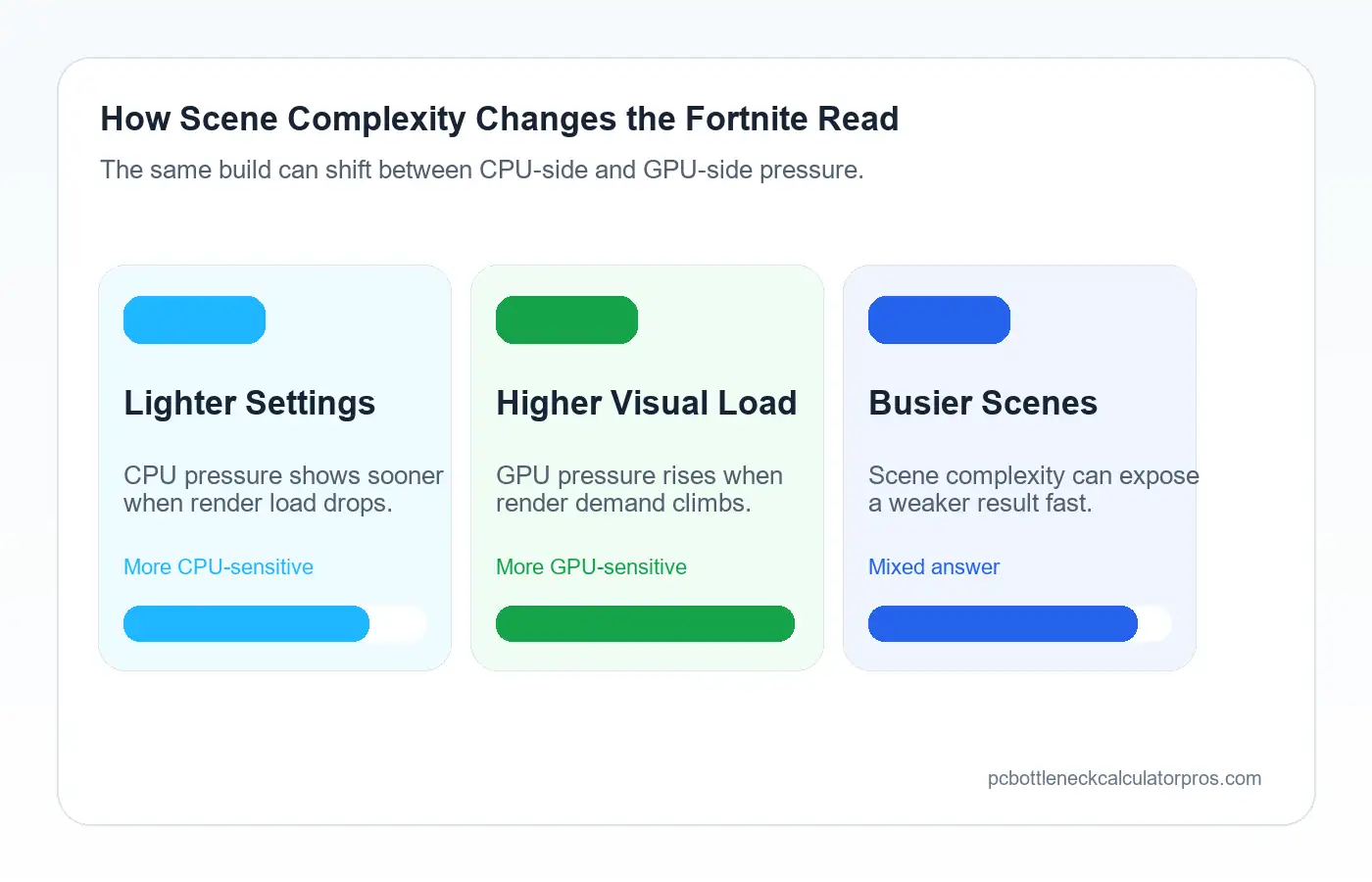
That local note matters because it explains why so many users misread the game. One Fortnite test can make the build look CPU-leaning, while another can make the same system look much more GPU-limited. The difference is often that the load itself changed. Lower competitive-style settings or Performance Mode can expose CPU delivery and background noise faster. Higher image-quality settings, heavier effects, and denser scenes can pull much harder on the graphics side.
This is the cleanest boundary between Fortnite and the existing game pages in the cluster. Valorant stays closer to a cleaner high-refresh CPU diagnosis. CS2 owns the match-stability angle where busier rounds expose weak frame delivery faster. Fortnite owns the mixed read where scene complexity, settings mode, and the jump from calm movement to chaotic fights can push the answer back and forth.
Which FPS Target Changes the Answer Most in Fortnite
A build that feels fine for a casual 120 FPS session can still fall apart once you start chasing 240 FPS in faster fights. Read the result against the exact Fortnite target you care about, because the gap between “playable” and “clean enough” gets much wider as the refresh goal climbs.
| Target | What Usually Changes First | What To Watch | Best First Read |
|---|---|---|---|
| 120 FPS | Many mid-range builds can still feel acceptable if the visual setup is sensible and the rest of the machine is clean. | Whether the miss is obvious across the whole session or only appears once the scene gets heavier. | Separate an obviously weak setup from one that is only being distorted by settings or background noise. |
| 144 FPS | The answer starts shifting more often between CPU-side and GPU-side pressure. | Whether lighter settings or scene changes move the result in a clear direction. | Use 144 FPS as a practical test point because it reveals real weakness without being as extreme as 240 FPS. |
| 240 FPS | Weak frame delivery, unstable 1% lows, and wrong settings choices become much easier to notice. | Whether the build still feels clean once the margin for error becomes much smaller. | Treat this as a separate goal, not just a bigger version of 120 FPS. |
120 FPS target
This is often the range where users first separate an obviously weak configuration from a system distorted by noise or settings.
144 FPS target
This is where the answer starts shifting more often between CPU pressure and GPU pressure depending on the setup.
240 FPS target
Small weaknesses in frame delivery, background noise, or the wrong settings choice become much easier to feel.
When Fortnite Is More Likely CPU-Limited
Fortnite is more likely CPU-limited when the game cannot move cleanly enough toward the target even after you lower the settings that should mainly help the GPU. This is one of the easiest wrong reads in a mixed-load game. A user lowers the visual load, expects a big gain, and then gets confused when the result barely changes where it matters.
One strong sign is that the graphics card still seems to have room left, but FPS and frame delivery do not improve enough toward the target. The same is true when average FPS looks decent, but the game still feels less stable than the rest of the hardware should suggest.
- The target is 144 FPS or 240 FPS.
- The visual setup is already fairly light.
- Lower render load does not create enough improvement.
- The GPU does not appear fully pinned, but the session still cannot hold the target cleanly.
- Busier scenes feel much worse than lighter ones even after sane retesting.
- Recording tools, browsers, overlays, or other background apps keep adding CPU pressure.
Before blaming the processor fully, check whether lower resolution or lower GPU-heavy settings create a real gain, whether RAM layout or headroom is bending the result, and whether background apps, heat, or sustained clock drop are making the result look more CPU-heavy than it should.
If the same pattern stays in place after that, the next check should move toward the CPU bottleneck calculator instead of another random round of setting changes.
When Fortnite Is More Likely GPU-Limited
Fortnite is more likely GPU-limited when render load becomes the clear wall and the graphics card cannot keep up with the current setup. This becomes easier to spot when the result changes strongly after you lower resolution or cut the settings that mainly affect the graphics side.
- The system is being tested at higher resolution.
- The current visual setup is much heavier than a lighter competitive-style setup.
- GPU usage stays high while FPS still misses the target.
- Turning down GPU-heavy settings improves both average FPS and feel.
- Lowering resolution creates a clear and repeatable jump.
- The processor already seems strong enough for the target, but the graphics card still cannot carry the load.
This is often easier to read in Fortnite than in the more CPU-leaning sibling pages because the visual side can pull the answer much harder once the render load rises.
If the system reacts clearly to those cuts, the next step belongs with the GPU bottleneck calculator rather than the CPU page.
How Settings Mode, Resolution, and Scene Complexity Change the Result in Fortnite
One Fortnite bottleneck result is never complete without context. Settings mode, resolution, and scene complexity can all change what the same build seems to mean. That is why the page should stay tied to repeatable conditions instead of one random screenshot or one easy scene.
Performance Mode or lighter competitive settings
This setup strips enough render weight away that weak CPU delivery, memory instability, and messy background load become easier to spot during edits, movement, and fast close-range fights.
Higher visual quality or higher resolution
Once you add sharper visuals, denser effects, or a heavier resolution target, the graphics card has to do much more of the lifting and the same PC can stop looking CPU-led very quickly.
Build fights, stacked endgames, and effect-heavy moments
These are better places to judge whether the PC stays stable enough for the target because Fortnite often exposes the weak point once builds, edits, movement, and effects all pile up together.
The practical rule is simple: test one lighter repeatable scene, test one fight-heavy moment, keep the same target and settings during both checks, and compare the result before deciding which part deserves the blame. If one Creative routine looks fine but late-game or busy fights fall apart, the first test was too soft to trust by itself.
What RAM, Storage, and Background Load Can Distort in Fortnite
Not every weak Fortnite result starts with the CPU or GPU pairing itself. Sometimes the build looks worse because the rest of the machine is adding enough noise to distort the test.
RAM is one of the first places to check. If memory setup or headroom is weaker than it should be for the session, the game can feel much less stable than the processor and graphics card alone suggest. Background load matters too. Browsers, launchers, overlays, recording tools, or update services can all change how stable the session feels, especially when the build is already near its limit. This is easier to miss in Fortnite because a softer scene may hide the problem until a heavier fight starts.
If that pattern keeps showing up, the next route may belong with the RAM bottleneck calculator or, for portable systems, a laptop-focused follow-up if heat or sustained power behavior is clearly bending the result.
What To Fix Before Buying New Parts for Fortnite
Many Fortnite players start pricing parts before they have ruled out a bad preset, a noisy background session, or weak memory behavior. That is how people spend money and still keep the same stutter. Make the current setup prove its limit first, especially if the problem only shows up once fights get busy.
Lower the right settings first
Compare your current preset against a lighter competitive-style setup or Performance Mode. If lower render load creates a clear gain, the GPU side deserves more attention. If it barely moves the result, the CPU side or system side becomes the stronger suspect.
Clean up background load
Close browsers, overlays, launchers, clip capture tools, and anything else that adds extra pressure during the same session, then retest the same fight-heavy scenario instead of a softer area.
Check RAM layout and headroom
Weak memory headroom or unstable behavior under load can make the bottleneck read drift away from the real hardware picture, especially when longer matches or busier endgames feel much worse than the first few calm minutes.
Check thermals and power behavior
If heat or power behavior is pulling performance down over time, the result may blame the wrong part. That matters most when a match starts fine and gets rougher as the session goes on.
Before you buy new parts for Fortnite, make sure the current test is clean, repeatable, and stable.
Which Upgrade Path Makes the Most Sense for Fortnite
The best upgrade depends on what the system actually fails to hold, not on which part has the louder reputation online. Fortnite can shift between CPU pressure and GPU pressure fast enough that a blind guess is more dangerous here than in a cleaner one-direction page.
CPU-first cases
A CPU-first path makes more sense when the target is 144 FPS or 240 FPS, the visual setup is already light enough, and lower render load is not helping enough in the same build-fight or late-game test.
GPU-first cases
A GPU-first path makes more sense when DX12-style visuals, higher resolution, or heavier image-quality choices are clearly driving the result and lighter render load creates a repeatable gain.
RAM-first cases
A RAM-first fix deserves more attention when the result is unstable, the build reacts too much to background activity, or the system feels rough in longer sessions and busier fights in ways the CPU and GPU names do not explain well.
When not to upgrade yet
Wait if the system has not been retested in cleaner conditions and in one real fight-heavy scenario, because the answer is still too noisy to trust.
That is where the broader gaming bottleneck calculator becomes more useful than another blind hardware guess.
How To Test a Fortnite Bottleneck Properly
The best Fortnite test should feel almost boring. Use the same target, the same kind of fight, and one change at a time so the answer comes from the hardware behavior, not from random scene changes between runs.
- Pick the target first: 120 FPS, 144 FPS, or 240 FPS.
- Use one lighter scene and one repeatable busier scene such as a build-heavy fight or stacked late-game moment.
- Record average FPS, 1% lows, and how the session feels.
- Lower one group of GPU-heavy settings, switch to a lighter preset, or lower resolution.
- Compare the new result before making another change.
For most users, the most useful pattern is one baseline test with current settings, one busier-scene retest, one lower-render-load retest, and one cleaned-up background-load retest. If the same limit keeps surviving those checks, the diagnosis becomes strong enough to trust.
Keep the test conditions stable. Do not change the target, the scene type, the background load, and the settings all at once.
Frequently Asked Questions
Is Fortnite more CPU-bound or GPU-bound?
Fortnite can lean either way depending on scene complexity and the settings load. In lighter settings, the CPU side may matter sooner. In heavier visual setups or higher resolution, the GPU can pull the answer much harder.
Why does Fortnite feel different after changing settings?
Because the game can shift the pressure point when the visual load changes. A lower-load setup may expose CPU-side pressure more clearly, while a heavier one can move the answer toward the graphics card.
Does lowering graphics always fix Fortnite FPS?
No. Lowering graphics helps most when the graphics card is the main limit. If the result barely moves after those cuts, the CPU side or system-side noise may still be the bigger issue.
Can RAM affect Fortnite bottleneck results?
Yes. Fortnite can hide memory-side weakness in a softer Creative routine, then expose it once longer matches, heavier fights, or busier endgames start stacking more pressure on the session. If the game gets rougher the longer you play, RAM and system cleanup deserve a real check before you blame the main parts alone.
Should I upgrade CPU or GPU first for Fortnite?
Decide from the type of Fortnite load that actually breaks the session. If Performance Mode or other lighter settings still leave the same late-fight stutter in place, the processor side moves higher on the list. If visual cuts or lower resolution clean the game up fast, the graphics side becomes the stronger upgrade case.
Conclusion
A Fortnite bottleneck calculator result is most useful when you judge it by the FPS target you actually want and by the kind of Fortnite load you are really playing, not by one easy scene or one generic score. Fortnite can shift between CPU pressure and GPU pressure faster than many users expect because the load changes with scene complexity and visual setup.
The smartest next step is usually one more clean Fortnite retest, not a rushed checkout cart. Recheck the same target in a lighter setup, then in the busier fight type that usually feels worst. If the same limit survives both passes, the upgrade choice becomes much easier to trust.
Once the answer stays consistent, the right upgrade path becomes much easier to trust.